
How well does iOS 27 and Siri AI work on iPhone Air?
I made the bold move of putting iOS 27 on my main phone right before a 3-day weekend to Busch Gardens in Williamsburg, VA. Not only was it my main phone, but it was an iPhone Air, which already has less than ideal battery life.
What can I say except, “I like to live on the edge.”
I was confident that even the first iOS 27 beta would be fine considering iOS 27 was focused on stability and performance in every conceivable category.
My worries were quelled from the get go since I didn’t have any battery issues once my phone was done indexing, and the only time battery life would take a hit was during extended time with Siri or while using Extend, Reframe, and Clean Up in Photos. Ditto with Image Playground. The phone would heat up, the screen would dim, and Pro Motion turned into slow motion. Once I stopped using those features, things went back to normal, including battery life.
More recently, I’ve been rarely using the imaging processing tools and that honeymoon period is over, but my honeymoon with Siri AI is still ongoing. I’m liking her more, and she’s also getting better at battery life. If you live to talk to your AI chatbot though, be prepared to carry a battery pack with you.
Overall, things are looking real good considering we’re only on the first of many betas.
Siri AI
Siri AI isn’t perfect, but no AI assistant is. That being said, it does perform well and does use your personalized context in ways that surprised me. Here are some examples:
It was able to tell me the weather near my vacation destination without having to spell out to Siri where I was going. It pulled up my calendar and email with hotel reservation information to figure out where I was going.
Asking Siri about my kids’ summer camp and for more details pulled up the email my wife forwarded me regarding their summer camp.
I asked Siri for any Halal restaurants in Williamsburg, and it did provide me with the only restaurant nearby and some that were out of our driving range. I wasn’t surprised considering we were in Williamsburg.
Siri correctly was able to tell me which one of my other 3 kids is in the most photos with our 1 year old baby.
I needed to reset an AirTag from scratch, and Siri was able to locate the instructions on how to do that. It’s not as simple as removing the AirTag in Find My.
On the famous Escape from Pompeii ride where you get soaked, I remember getting my shoes and socks wet 8 years ago since I sat in the front row and the first dip causes a gush of water to engorge your shoes. I asked Siri if there was a spot to put your shoes before you get on the ride, and she correctly told me there is no place to put your shoes and you have to wear them.
Most rides in Busch Gardens allow you to put your items in cubbies or baskets right before you board your seat (including shoes or slide sandals), but in the Pompeii ride, you are specifically told to hold onto all your belongings and the staff doesn’t make any exceptions. I’m glad I wore sandals.
I needed to remove a fuse in my minivan since one of my rear windows was falling off the regulator, and I didn’t want anyone to press the switch to roll the window down. Siri AI was able to point me in the right direction and I was successful in deactivating the proper window switch. I triple-checked with Gemini and YouTube since the window would be stuck in the rolled down position.
I was trying to remember the name of a movie I saw decades ago and gave Siri this prompt:
“What's that movie where the people were messing around with a truck radio thing and then they accidentally murdered somebody by accident?”
She correctly responded:
“The movie you are thinking of is likely Joy Ride (2001). The plot follows two brothers (played by Paul Walker and Steve Zahn) who use a CB radio to prank a lonely truck driver known as "Rusty Nail". The seemingly harmless joke quickly spirals out of control, leading to a deadly game of cat and mouse.”
My Costco membership was going to expire in 41 days per the app, and I asked Siri what date my membership would expire based on the information on-screen, and she gave me the exact date.
Siri is actually usable, for real for real.
I made the bold move of putting iOS 27 on my main phone right before a 3-day weekend to Busch Gardens in Williamsburg, VA. Not only was it my main phone, but it was an iPhone Air, which already has less than ideal battery life.
What can I say except, “I like to live on the edge.”
I was confident that even the first iOS 27 beta would be fine considering iOS 27 was focused on stability and performance in every conceivable category.
My worries were quelled from the get go since I didn’t have any battery issues once my phone was done indexing, and the only time battery life would take a hit was during extended time with Siri or while using Extend, Reframe, and Clean Up in Photos. Ditto with Image Playground. The phone would heat up, the screen would dim, and Pro Motion turned into slow motion. Once I stopped using those features, things went back to normal, including battery life.
More recently, I’ve been rarely using the imaging processing tools and that honeymoon period is over, but my honeymoon with Siri AI is still ongoing. I’m liking her more, and she’s also getting better at battery life. If you live to talk to your AI chatbot though, be prepared to carry a battery pack with you.
Overall, things are looking real good considering we’re only on the first of many betas.
Siri AI
Siri AI isn’t perfect, but no AI assistant is. That being said, it does perform well and does use your personalized context in ways that surprised me. Here are some examples:
It was able to tell me the weather near my vacation destination without having to spell out to Siri where I was going. It pulled up my calendar and email with hotel reservation information to figure out where I was going.
Asking Siri about my kids’ summer camp and for more details pulled up the email my wife forwarded me regarding their summer camp.
I asked Siri for any Halal restaurants in Williamsburg, and it did provide me with the only restaurant nearby and some that were out of our driving range. I wasn’t surprised considering we were in Williamsburg.
Siri correctly was able to tell me which one of my other 3 kids is in the most photos with our 1 year old baby.
I needed to reset an AirTag from scratch, and Siri was able to locate the instructions on how to do that. It’s not as simple as removing the AirTag in Find My.
On the famous Escape from Pompeii ride where you get soaked, I remember getting my shoes and socks wet 8 years ago since I sat in the front row and the first dip causes a gush of water to engorge your shoes. I asked Siri if there was a spot to put your shoes before you get on the ride, and she correctly told me there is no place to put your shoes and you have to wear them.
Most rides in Busch Gardens allow you to put your items in cubbies or baskets right before you board your seat (including shoes or slide sandals), but in the Pompeii ride, you are specifically told to hold onto all your belongings and the staff doesn’t make any exceptions. I’m glad I wore sandals.
I needed to remove a fuse in my minivan since one of my rear windows was falling off the regulator, and I didn’t want anyone to press the switch to roll the window down. Siri AI was able to point me in the right direction and I was successful in deactivating the proper window switch. I triple-checked with Gemini and YouTube since the window would be stuck in the rolled down position.
I was trying to remember the name of a movie I saw decades ago and gave Siri this prompt:
“What's that movie where the people were messing around with a truck radio thing and then they accidentally murdered somebody by accident?”
She correctly responded:
“The movie you are thinking of is likely Joy Ride (2001). The plot follows two brothers (played by Paul Walker and Steve Zahn) who use a CB radio to prank a lonely truck driver known as "Rusty Nail". The seemingly harmless joke quickly spirals out of control, leading to a deadly game of cat and mouse.”
My Costco membership was going to expire in 41 days per the app, and I asked Siri what date my membership would expire based on the information on-screen, and she gave me the exact date.
Siri is actually usable, for real for real.
The best part about the Siri AI app.
You can easily use the two-finger scroll method to select and delete multiple entries quickly and easily, unlike with the Gemini app. Neither app has a “recently deleted” section either to undo any deletes, so be careful.
You can easily use the two-finger scroll method to select and delete multiple entries quickly and easily, unlike with the Gemini app. Neither app has a “recently deleted” section either to undo any deletes, so be careful.
iPhone feature request: true home screen customization.
I wrote about this passionately over a year ago, but it is still a feature that we’re missing and on my wish list for iOS. We got full icon home screen customization with iOS 18, but we’re still missing full widget customization:
We have been waiting 18 years to move our apps wherever we want to in iOS, and now we have complete app freedom.
After all, it took a new generation of engineers to make this happen.
Developers had to be born first, in order to handle the complexities of moving the icons from the top, to the bottom, per Craig Federighi himself.
Truly a remarkable feat.
Unfortunately, we may need to wait for another batch of engineers to be born to fix the widget situation.
All jokes aside, Apple states we can place widgets where we want them, but that is not the case.
Apple’s claim:
Place your apps and widgets right where you want them. Arrange them along the bottom for quicker reach, or off to the side to frame a favorite wallpaper. Or give each page of your Home Screen a unique layout that's most helpful for you.
Full visuals in the original link.
I wrote about this passionately over a year ago, but it is still a feature that we’re missing and on my wish list for iOS. We got full icon home screen customization with iOS 18, but we’re still missing full widget customization:
We have been waiting 18 years to move our apps wherever we want to in iOS, and now we have complete app freedom.
After all, it took a new generation of engineers to make this happen.
Developers had to be born first, in order to handle the complexities of moving the icons from the top, to the bottom, per Craig Federighi himself.
Truly a remarkable feat.
Unfortunately, we may need to wait for another batch of engineers to be born to fix the widget situation.
All jokes aside, Apple states we can place widgets where we want them, but that is not the case.
Apple’s claim:
Place your apps and widgets right where you want them. Arrange them along the bottom for quicker reach, or off to the side to frame a favorite wallpaper. Or give each page of your Home Screen a unique layout that's most helpful for you.
Full visuals in the original link.
The European Union gets major features with iOS 26.5 Beta 1
Juli Clover at MacRumors mentions all the new features as part of her iOS 26.5 Beta 1 coverage:
European Union Third-Party Wearable Changes
Apple is working on new interoperability features in the EU to comply with the requirements of the Digital Markets Act. Apple has tested these features in prior betas, but the Live Activity sharing feature is new.
Proximity pairing - Devices like earbuds will be able to pair with an iOS device in an AirPods-like way by bringing the accessory close to an iPhone or iPad to initiate a simple, one-tap pairing process. Pairing third-party devices will no longer require multiple steps.
Notifications - Third-party accessories like smart watches will be able to receive notifications from the iPhone. Users will be able to view and react to incoming notifications, which is a capability normally limited to the Apple Watch. Notifications can only be forwarded to one connected device at a time, and turning on notifications for a third-party device disables notifications to an Apple Watch. Notifications from select apps can be forwarded, or from all apps.
Live Activities - Live Activities are able to sync to a third-party wearable, similar to other notifications. This is a feature that appears to be new to iOS 26.5.
There's no word on when the EU third-party wearable features will launch, and Apple also tested them in the iOS 26.3 and iOS 26.4 betas before removing them when the software was released to the public.
Proximity pairing sounds neat and convenient, but Notifications and Live Activities on third-party smart watches sounds like a huge mess:
What if the manufacturer of a 3rd-party smartwatch releases an update that accidentally breaks iPhone notification compatibility?
With Apple Watch, you can pair up to 5 Apple Watches with one iPhone and easily switch them out to activate them, simply by wearing the other watch. Notifications only go to the Apple Watch you’re wearing. How smooth will the transition be when going from a 3rd-party watch to an Apple Watch or vice versa?
What 3rd party devices will be supported and for how many years? iPhone and Apple Watch compatibility already has a lot of tiers depending on how far back you go, but you almost need a Doctorate just to figure out if an iPhone and Apple Watch are compatible. I can’t even imagine how that will be for 3rd party devices.
Juli Clover at MacRumors mentions all the new features as part of her iOS 26.5 Beta 1 coverage:
European Union Third-Party Wearable Changes
Apple is working on new interoperability features in the EU to comply with the requirements of the Digital Markets Act. Apple has tested these features in prior betas, but the Live Activity sharing feature is new.
Proximity pairing - Devices like earbuds will be able to pair with an iOS device in an AirPods-like way by bringing the accessory close to an iPhone or iPad to initiate a simple, one-tap pairing process. Pairing third-party devices will no longer require multiple steps.
Notifications - Third-party accessories like smart watches will be able to receive notifications from the iPhone. Users will be able to view and react to incoming notifications, which is a capability normally limited to the Apple Watch. Notifications can only be forwarded to one connected device at a time, and turning on notifications for a third-party device disables notifications to an Apple Watch. Notifications from select apps can be forwarded, or from all apps.
Live Activities - Live Activities are able to sync to a third-party wearable, similar to other notifications. This is a feature that appears to be new to iOS 26.5.
There's no word on when the EU third-party wearable features will launch, and Apple also tested them in the iOS 26.3 and iOS 26.4 betas before removing them when the software was released to the public.
Proximity pairing sounds neat and convenient, but Notifications and Live Activities on third-party smart watches sounds like a huge mess:
What if the manufacturer of a 3rd-party smartwatch releases an update that accidentally breaks iPhone notification compatibility?
With Apple Watch, you can pair up to 5 Apple Watches with one iPhone and easily switch them out to activate them, simply by wearing the other watch. Notifications only go to the Apple Watch you’re wearing. How smooth will the transition be when going from a 3rd-party watch to an Apple Watch or vice versa?
What 3rd party devices will be supported and for how many years? iPhone and Apple Watch compatibility already has a lot of tiers depending on how far back you go, but you almost need a Doctorate just to figure out if an iPhone and Apple Watch are compatible. I can’t even imagine how that will be for 3rd party devices.
How the iPhone’s Screenshot buttons came to be.
Heard this on The Talk Show a few days ago, but Imthaz at Volatile Inputs has the full transcript of that particular segment between John Gruber and David Pogue.
Heard this on The Talk Show a few days ago, but Imthaz at Volatile Inputs has the full transcript of that particular segment between John Gruber and David Pogue.
iPhone Clock icon transition right at daylight savings time.
Had to get up for work at 2:30am but that time didn’t exist last night, so I decided to get up at 1:55am and saw the clock transition from 1:59am to 3am. Nothing super special, but you have to wait 8 months to see a transition like this again.
Had to get up for work at 2:30am but that time didn’t exist last night, so I decided to get up at 1:55am and saw the clock transition from 1:59am to 3am. Nothing super special, but you have to wait 8 months to see a transition like this again.
You cannot jump to a specific page of a document in ‘Files’ but you can in ‘Preview.’
No matter which sub-menu you try, there is no “Go to page” option. You need the new Preview app in iOS 26 and then you’re allowed to go directly to a specific page number. 📓
No matter which sub-menu you try, there is no “Go to page” option. You need the new Preview app in iOS 26 and then you’re allowed to go directly to a specific page number. Kind of annoying because I like scanning my books as a backup, and it’s annoying to scroll hundreds of pages down to get to a specific page.
You need iOS 26 or iPadOS 26 to download the Preview app. The good thing is the Files app in iOS 26 gives you a Preview button at the bottom, making it one tap to jump right in.
To be clear, the Files app never had the “Go to page” option from what I can recall. I used an iPhone 14 with iOS 18 installed to confirm that Files does not have that option. You will need to upgrade to iOS 26 to get Preview or download a 3rd party app if your device doesn’t support iOS 26.

No matter which submenu you choose, you don’t get a “Go to page” option, but if you click Preview at the bottom…

The 3 dots in the top-right corner brings up the option to navigate to a specific page.
Apple’s new foldable iPhone needs to nail two key features in order to make it a success.
Those two features are:
Foldable display durability.
Amazing, intuitive software experience.
I’m not worried about the hinge durability since Apple has been making hinges for years and have some of the best hardware in the market. The main concern is with the foldable display.
Apple did innovate hard with Ceramic Shield 2, being 3x better at scratch resistance, and is the only phone with non-existent scratches on a level 6 to barely scratching at a level 7 on mohs scale of hardness. Every other mainstream and flagship phone scratches at a level 6 with deeper grooves at a level 7. I can’t imagine Apple will release a fragile inner display with a crease requiring a plastic screen protector prone to fingernail scratches. This is the harsh reality is even after 7 hardware iterations of the Samsung Galaxy Z Fold. Impressive and thin, but with an achilles heel.
Apple waits for technology to be set to a standard that meets their ethos before jumping in. It would be spitting in the face of Steve Jobs if they released a device with a plastic screen protector after he famously ordered a massive shift from plastic to glass in iPhone production the minute he noticed scratches on the display. Hopefully Apple’s continued investment in Corning will mitigate this issue and they have something up their sleeve that will wow us.
I’m also worried about the software experience, especially if we have the iPad to judge by. Having too many options for window layouts and multitasking would be cumbersome on a smaller screen, and hopefully Apple takes a play out of their playbook to make the software fun, simple, and intuitive. When iPhone X was released, it was a huge shift in usability with the removal of the Home Button, but it was once again fun, simple, and intuitive. Dynamic Island was also a new innovation at a smaller scale and followed the playbook, being a useful tool that I miss every time I go back to a notched iPhone.
Now what is my definition of success in this specific case? It’s not record sales numbers, but the ability to execute and make an experience that changes the game. I consider iPhone Air to be a success, because it shows you can make a durable and thin device that lasts all day at scale, something not possible a few years ago. A foldable phone doesn’t have to deliver on all technological fronts with the best cameras and the best battery life, but it needs to be durable like a regular phone, and it needs to have a software experience that makes sense and would make people jump at the opportunity.
Those two features are:
Foldable display durability.
Amazing, intuitive software experience.
I’m not worried about the hinge durability since Apple has been making hinges for years and have some of the best hardware in the market. The main concern is with the foldable display.
Apple did innovate hard with Ceramic Shield 2, being 3x better at scratch resistance, and is the only phone with non-existent scratches on a level 6 to barely scratching at a level 7 on mohs scale of hardness. Every other mainstream and flagship phone scratches at a level 6 with deeper grooves at a level 7. I can’t imagine Apple will release a fragile inner display with a crease requiring a plastic screen protector prone to fingernail scratches. This is the harsh reality is even after 7 hardware iterations of the Samsung Galaxy Z Fold. Impressive and thin, but with an achilles heel.
Apple waits for technology to be set to a standard that meets their ethos before jumping in. It would be spitting in the face of Steve Jobs if they released a device with a plastic screen protector after he famously ordered a massive shift from plastic to glass in iPhone production the minute he noticed scratches on the display. Hopefully Apple’s continued investment in Corning will mitigate this issue and they have something up their sleeve that will wow us.
I’m also worried about the software experience, especially if we have the iPad to judge by. Having too many options for window layouts and multitasking would be cumbersome on a smaller screen, and hopefully Apple takes a play out of their playbook to make the software fun, simple, and intuitive. When iPhone X was released, it was a huge shift in usability with the removal of the Home Button, but it was once again fun, simple, and intuitive. Dynamic Island was also a new innovation at a smaller scale and followed the playbook, being a useful tool that I miss every time I go back to a notched iPhone.
Now what is my definition of success in this specific case? It’s not record sales numbers, but the ability to execute and make an experience that changes the game. I consider iPhone Air to be a success, because it shows you can make a durable and thin device that lasts all day at scale, something not possible a few years ago. A foldable phone doesn’t have to deliver on all technological fronts with the best cameras and the best battery life, but it needs to be durable like a regular phone, and it needs to have a software experience that makes sense and would make people jump at the opportunity.
Icon placement needs to be unique for each wallpaper on iOS.
Icon customization has improved over the last few iterations of iOS. You can customize each of the following attributes:
Icon size
Truly placing icons anywhere on your Home Screen
Icon color (default, dark, clear, tinted)
When you switch wallpapers, your icon size and color can be different for each, but your icon placement always stays the same. It would be nice to have custom icon placement for each wallpaper so you can actually see the people or objects in the background.
I can see my daughter clearly in this photo, but I can’t see my future ride.
Icon customization has improved over the last few iterations of iOS. You can customize each of the following attributes:
Icon size
Truly placing icons anywhere on your Home Screen
Icon color (default, dark, clear, tinted)
When you switch wallpapers, your icon size and color can be different for each, but your icon placement always stays the same. It would be nice to have custom icon placement for each wallpaper so you can actually see the people or objects in the background.
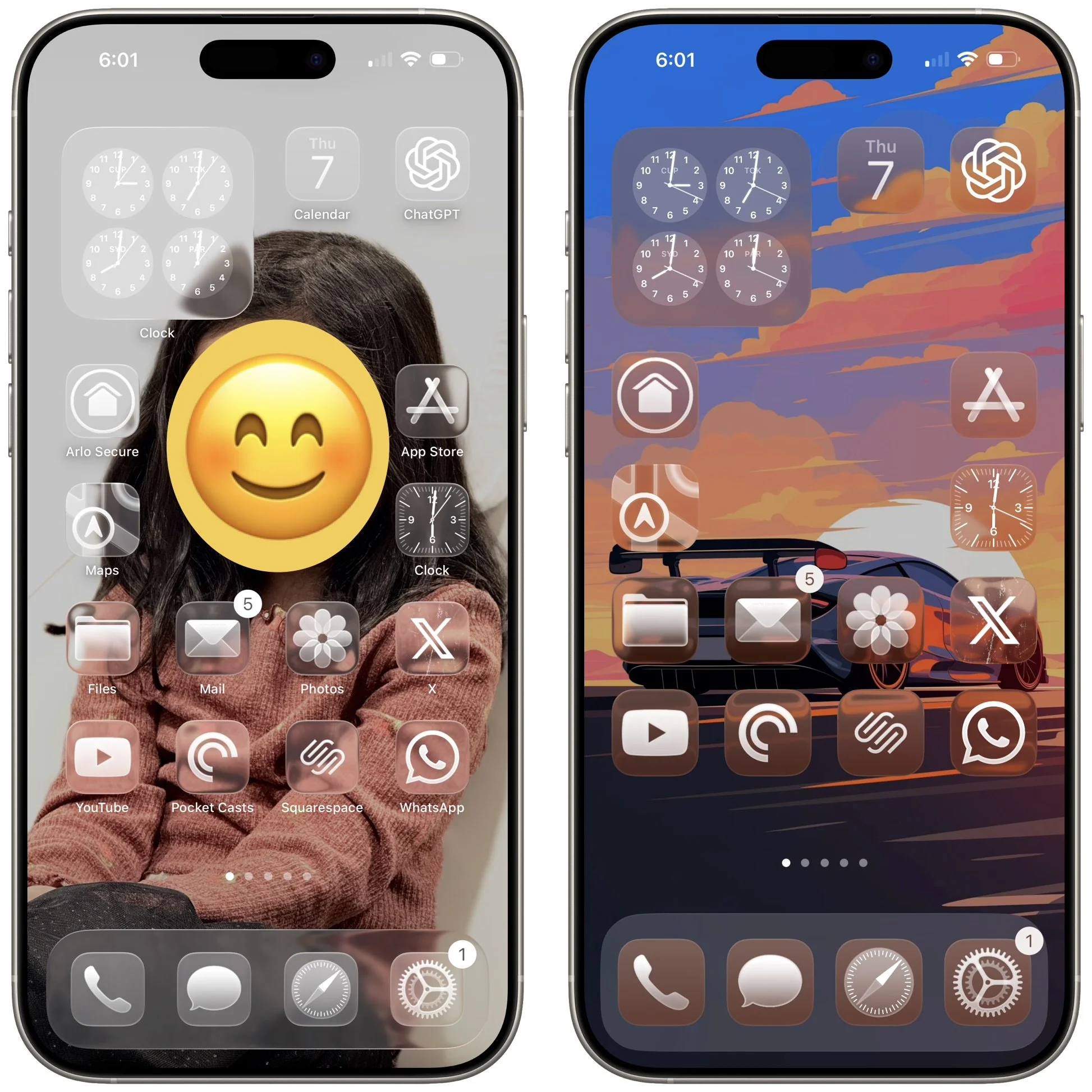
I can see my daughter clearly, but I can’t see my future ride since icon placement for each wallpaper is not customizable, yet.
Amazon’s app lets you save your returns to the Wallet app.
Not sure when this update was rolled out, but it’s a heck of a lot easier now to keep track of your Amazon returns. I started two returns recently, and I was given the option to add the barcode into the Wallet app.
No more random screenshots with barcodes scattered in my Photo Library.
Not sure when this update was rolled out, but it’s a heck of a lot easier now to keep track of your Amazon returns. I started two returns recently, and I was given the option to add the barcode into the Wallet app.
No more random screenshots with barcodes scattered in my Photo Library.
Comparing icons: iOS 18 vs iOS 26
9to5Mac has a nice comparison showing the updated icons. Of course all the new icons have Liquid Glass inspiration, but the Clock icon is by far the best upgrade we get.
9to5Mac has a nice comparison showing the updated icons. Of course all the new icons have Liquid Glass inspiration, but the Clock icon is by far the best upgrade we get.
The Files app conundrum in iOS 26 has been solved (for real this time).
I jumped the gun and didn’t tinker around hard enough yesterday, but you can get the default, Quick Look view back as your default in the Files app:
Tap and hold on any file type in Files.
Select “Open With.”
Select “Preview with Quick Look.”
This will immediately make all files with that extension open with Quick Look by default.
I jumped the gun and didn’t tinker around hard enough yesterday, but you can get the default, Quick Look view back as your default in the Files app:
Tap and hold on any file type in Files.
Select “Open With.”
Select “Preview with Quick Look.”
This will immediately make all files with that extension open with Quick Look by default.
The Files app conundrum in iOS 26 continues.
The Files app is very versatile, but having to go through multiple steps just to look at a file, photo, video, etc., adds to the complexity of a very capable yet simple app.
Instead of tapping a file or photo to view it, now you have to tap and hold and select Quick Look in order to view said file or photo without exiting the app. I deleted the Preview app so I wouldn’t have to deal with this issue, and it worked for a while, until I realized that different file types open in different apps that you have installed:
If you tap a PDF - it opens Preview as the default. If you delete Preview, then it opens in Apple’s Books app.
If you tap an image file - it opens in Preview, but if you delete Preview, it opens in the Files app like iOS 18.
If you tap a video file - it opens in VLC by default, but if I delete VLC, it opens in Files.
I can live without the Preview app, but I don’t want to delete Books, VLC, and whatever other app that also opens documents, videos, etc.
The UI should be the other way around. A standard tap should open the respective file in Files, and a tap and hold should bring up an “Open with…” option to select another app of your choice.
The Files app is very versatile, but having to go through multiple steps just to look at a file, photo, video, etc., adds to the complexity of a very capable yet simple app.
Instead of tapping a file or photo to view it, now you have to tap and hold and select Quick Look in order to view said file or photo without exiting the app. I deleted the Preview app so I wouldn’t have to deal with this issue, and it worked for a while, until I realized that different file types open in different apps that you have installed:
If you tap a PDF - it opens Preview as the default. If you delete Preview, then it opens in Apple’s Books app.
If you tap an image file - it opens in Preview, but if you delete Preview, it opens in the Files app like iOS 18.
If you tap a video file - it opens in VLC by default, but if I delete VLC, it opens in Files.
I can live without the Preview app, but I don’t want to delete Books, VLC, and whatever other app that also opens documents, videos, etc.
The UI should be the other way around. A standard tap should open the respective file in Files, and a tap and hold should bring up an “Open with…” option to select another app of your choice.
How to properly backup your iPhone before installing iOS 26.
Before you install iOS 26 on your iPhone, follow this procedure to backup your device:
1. Update all your apps to the latest version in the App Store.
2. Force quit all your apps in the app switcher.
3. Restart your iPhone to remove any software gremlins running in the background.
4. On bootup, backup your iPhone to iCloud.
5. Install the most current version of iOS 18 on your device. This is in case iOS 26 becomes a problem for you and you need to revert back to iOS 18.
6. Once the latest version of iOS 18 is installed on your device, repeat steps 1 thru 4, and then finally install the iOS 26 public beta.
There is no 100% failsafe solution, but this method has always worked for me and gave me a reliable backup to go back to, even though I never needed it.
Before you install iOS 26 on your iPhone, follow this procedure to backup your device:
1. Update all your apps to the latest version in the App Store.
2. Force quit all your apps in the app switcher.
3. Restart your iPhone to remove any software gremlins running in the background.
4. On bootup, backup your iPhone to iCloud.
5. Install the most current version of iOS 18 on your device. This is in case iOS 26 becomes a problem for you and you need to revert back to iOS 18.
6. Once the latest version of iOS 18 is installed on your device, repeat steps 1 thru 4, and then finally install the iOS 26 public beta.
There is no 100% failsafe solution, but this method has always worked for me and gave me a reliable backup to go back to, even though I never needed it.
iOS 26 alarm for people who actually want to wake up.
Couldn’t have made it better myself. The current version is not foolproof. 📓
Couldn’t have made it better myself. The current version is not foolproof.

Source: Soren Iverson
The Files and Preview app conundrum in iOS 26 (solved).
One of my readers pointed out to me something I didn’t even think of trying, but it solves the Files and Preview app conundrum:
You need to click and hold on a file, in the menu that pops up you select Quick Look. Then you can swipe between files. You will also get a pull down menu to the left, where you can choose between the files in the selected folder.
It is an extra step from before, but a lot better than no solution at all. Thank you Jörgen!
One of my readers pointed out to me something I didn’t even think of trying, but it solves the Files and Preview app conundrum:
You need to click and hold on a file, in the menu that pops up you select Quick Look. Then you can swipe between files. You will also get a pull down menu to the left, where you can choose between the files in the selected folder.


It is an extra step from before, but a lot better than no solution at all. Thank you Jörgen!
The Files and Preview app conundrum in iOS 26.
Every time I open a file or a photo in my Files app, it automatically takes me to the new Preview app. The problem with that is you can no longer swipe between files or photos in the Files app. I keep certain photos off my camera roll (no not those kind), such as really old kids’ photos from my wife’s old phone, but I can’t even scroll through them like I used to. Quite literally every time I click on a file, it goes to the Preview app.
Same thing goes for the Preview app. If I try to open the same folder of photos in the Preview app, you can’t scroll between photos in any folder. You’re stuck looking at photos one at a time. Tap a file, look at it, tap back, and tap the next file.
The only way to solve this problem right now? Delete the Preview app.
I think Apple needs to let you view your files in the Files app like it used to, and if you want to open it in the Preview app, add that option to the share sheet.
Every time I open a file or a photo in my Files app, it automatically takes me to the new Preview app. The problem with that is you can no longer swipe between files or photos in the Files app. I keep certain photos off my camera roll (no not those kind), such as really old kids’ photos from my wife’s old phone, but I can’t even scroll through them like I used to. Quite literally every time I click on a file, it goes to the Preview app.
Same thing goes for the Preview app. If I try to open the same folder of photos in the Preview app, you can’t scroll between photos in any folder. You’re stuck looking at photos one at a time. Tap a file, look at it, tap back, and tap the next file.
The only way to solve this problem right now? Delete the Preview app.
I think Apple needs to let you view your files in the Files app like it used to, and if you want to open it in the Preview app, add that option to the share sheet.
New alarm design in iOS 26 might make you oversleep.
Tim Hardwick from MacRumors (click link to see the controversial change):
In the iOS 26 beta, Apple has redesigned the alarm screen in the Clock app, giving it a cleaner look with a larger time display and significantly bigger buttons. When the alarm goes off, you'll now see two large, equal-sized buttons for Stop and Snooze placed side by side at the bottom of the screen.
While the redesign fits with Apple's broader visual refresh in iOS 26, it also seems to address a problem the company had already solved: reducing the chances of you hitting Stop instead of Snooze when you're half-awake and fumbling for your phone. Ironically, internal testing once showed that making both buttons the same size actually made that mistake more likely.
According to Jack Fields, a former Apple engineer and head writer at Kernel Extension, the new layout contradicts internal research he was involved in during his time at the company. That testing included a version of the Clock app that logged user interactions to a heat map, tracking exactly where people tapped the screen upon waking.
"It was recording where our sleepy hands were smacking around on the screen in order to see how accurate we were in turning off the alarms," says Fields. What they found was perhaps counterintuitive: when Stop and Snooze were made the same size and placed close together, users were 30% more likely to hit Stop by accident. In other words, it actually increased the chances of oversleeping.
This will change 100%. Apple should keep the fat SNOOZE button and place it higher, and make the STOP button small and lower like it was before.
Another reason why I have 5 or 6 alarms for my unorthodox sleeping pattern.
Tim Hardwick from MacRumors (click link to see the controversial change):
In the iOS 26 beta, Apple has redesigned the alarm screen in the Clock app, giving it a cleaner look with a larger time display and significantly bigger buttons. When the alarm goes off, you'll now see two large, equal-sized buttons for Stop and Snooze placed side by side at the bottom of the screen.
While the redesign fits with Apple's broader visual refresh in iOS 26, it also seems to address a problem the company had already solved: reducing the chances of you hitting Stop instead of Snooze when you're half-awake and fumbling for your phone. Ironically, internal testing once showed that making both buttons the same size actually made that mistake more likely.
According to Jack Fields, a former Apple engineer and head writer at Kernel Extension, the new layout contradicts internal research he was involved in during his time at the company. That testing included a version of the Clock app that logged user interactions to a heat map, tracking exactly where people tapped the screen upon waking.
"It was recording where our sleepy hands were smacking around on the screen in order to see how accurate we were in turning off the alarms," says Fields. What they found was perhaps counterintuitive: when Stop and Snooze were made the same size and placed close together, users were 30% more likely to hit Stop by accident. In other words, it actually increased the chances of oversleeping.
This will change 100%. Apple should keep the fat SNOOZE button and place it higher, and make the STOP button small and lower like it was before.
Another reason why I have 5 or 6 alarms for my unorthodox sleeping pattern.
Bringing back the Library in the Photos app is today’s “flush headphone jack” moment.
Say what you want about Liquid Glass. Whether you hate it or love it, what is no doubt a victory for everyone (unless you’re clinically insane) is the return of the Library in the Photos app. A staple feature that was always present from the beginning of iPhone was harshly taken away from us in iOS 18, only to return to its former glory.
The Library is like the Home Button for the Photos app. Simply tap the Library to see everything in chronological order. No more frustration in sorting between your recent Collections only to be frustrated trying to find photos you took just a few days ago.
If WWDC was a true live event, you would have seen people cheer when they saw the clip showing the return of the Library, exactly like when the flush headphone jack was announced with the iPhone 3G.
The iPhone (aka iPhone 2G), debuted with huge fanfare, but it had one glaring hardware issue, which was a recessed headphone jack. That meant any headphone jack with a wider diameter plug just wouldn’t work with your iPhone, the ultimate iPod. Every iPod prior to the iPhone had a flush headphone jack and you could use any pair of headphones with it, but now all of a sudden your special headphones were not compatible. You needed a 3.5mm to 3.5mm adapter in order to use your non-Apple headphones. Back in those days, I had a Nokia N95 8GB, and I would scoff at those iPhone users with their substandard headphone jack since mine was flush, even though the headphone jack on the Nokia N95 was side mounted!
It was one year of agony for early iPhone adopters (similar to iOS 18’s removal of the Library), but one that never surfaced again.1
Here’s to many more fantastic years with the Library.
1The iPhone 7 did get rid of the headphone jack, but that was justified.
Say what you want about Liquid Glass. Whether you hate it or love it, what is no doubt a victory for everyone (unless you’re clinically insane) is the return of the Library in the Photos app. A staple feature that was always present from the beginning of iPhone was harshly taken away from us in iOS 18, only to return to its former glory.
The Library is like the Home Button for the Photos app. Simply tap the Library to see everything in chronological order. No more frustration in sorting between your recent Collections only to be frustrated trying to find photos you took just a few days ago.
If WWDC was a true live event, you would have seen people cheer when they saw the clip showing the return of the Library, exactly like when the flush headphone jack was announced with the iPhone 3G.
The iPhone (aka iPhone 2G), debuted with huge fanfare, but it had one glaring hardware issue, which was a recessed headphone jack. That meant any headphone jack with a wider diameter plug just wouldn’t work with your iPhone, the ultimate iPod. Every iPod prior to the iPhone had a flush headphone jack and you could use any pair of headphones with it, but now all of a sudden your special headphones were not compatible. You needed a 3.5mm to 3.5mm adapter in order to use your non-Apple headphones. Back in those days, I had a Nokia N95 8GB, and I would scoff at those iPhone users with their substandard headphone jack since mine was flush, even though the headphone jack on the Nokia N95 was side mounted!
It was one year of agony for early iPhone adopters (similar to iOS 18’s removal of the Library), but one that never surfaced again.*
Here’s to many more fantastic years with the Library.
*The iPhone 7 did get rid of the headphone jack, but that was justified.
This editing feature in Photos will save you tons of storage.
If you crop a video and select “Save Video,” the storage size of your video won’t decrease. You have to select, “Save Video as New Clip” to get a reduction in file size, and then delete the original video.

The “Save Video” option crops your video, but still retains the whole video in case you change your mind. When you go back to editing the video under the “crop” option, you will see the entire video with your cropped selection. I had a 10GB slow-mo video that was 42 minutes long, but I only needed 1 minute from it. After cropping my video and selecting “Save Video,” the file size was still 10GB. I was sure I didn’t need all that extra footage, so I selected, “Save Video as New Clip,” and then deleted the original 10GB video.
My new file size? 342MB.
If you crop a video and select “Save Video,” the storage size of your video won’t decrease. You have to select, “Save Video as New Clip” to get a reduction in file size, and then delete the original video.
The “Save Video” option crops your video, but still retains the whole video in case you change your mind. When you go back to editing the video under the “crop” option, you will see the entire video with your cropped selection. I had a 10GB slow-mo video that was 42 minutes long, but I only needed 1 minute from it. After cropping my video and selecting “Save Video,” the file size was still 10GB. I was sure I didn’t need all that extra footage, so I selected, “Save Video as New Clip,” and then deleted the original 10GB video.
My new file size? 342MB.